Integrating Keycloak with Active Directory: LDAP, Kerberos & Group Mapping
A technical walkthrough for integrating Keycloak with Active Directory, covering SAMAccountName, group mapping, and Kerberos configuration.
Integrating Keycloak with Active Directory
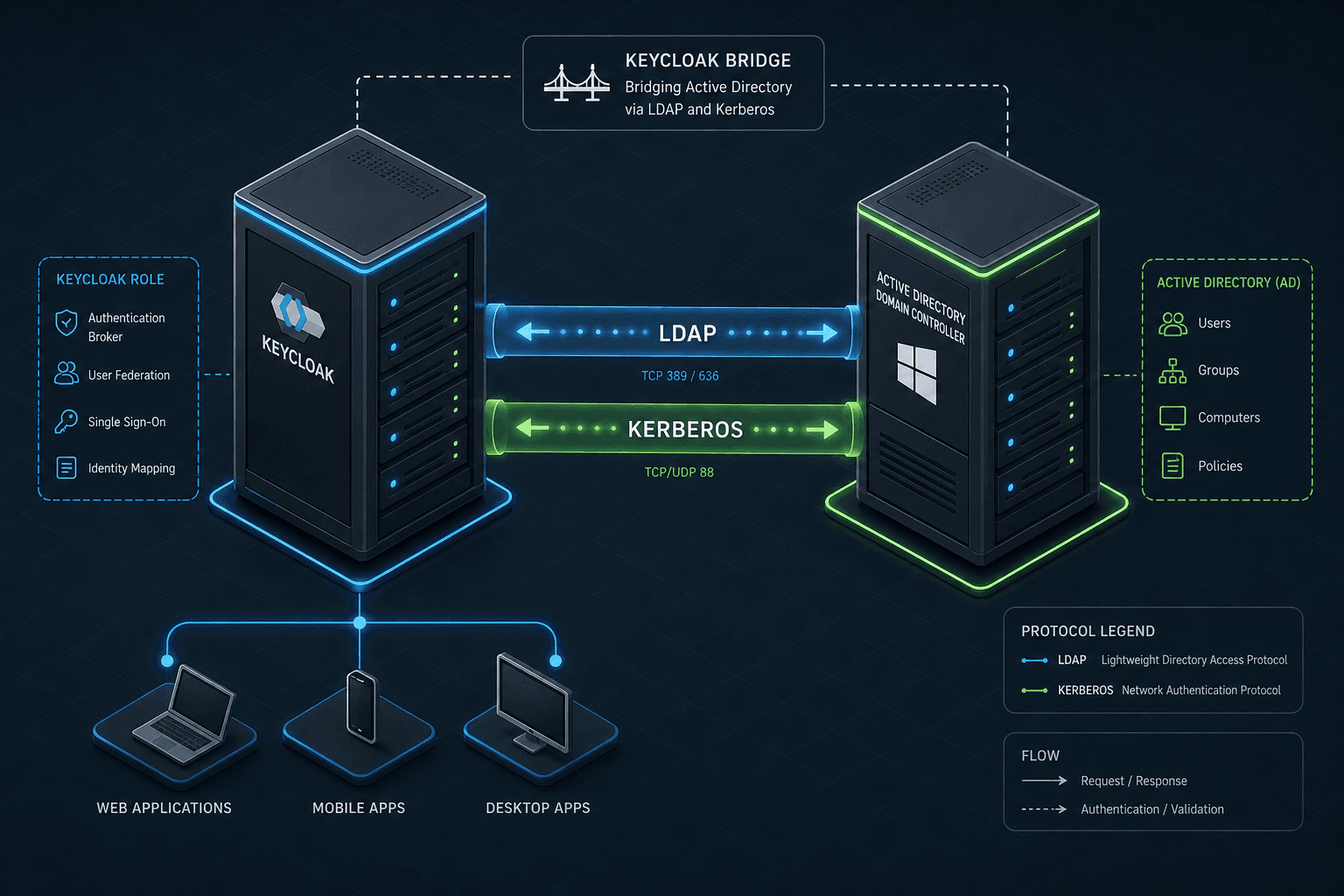
Integrating Keycloak with Active Directory (AD) is rarely a simple "plug-and-play" task. It involves bridging two distinct identity models: Microsoft’s hierarchical, multi-domain LDAP/AD DS structure and Keycloak’s flat, realm-based identity model. For identity engineers, the primary challenge in any keycloak active directory setup is not just connecting to the directory, but correctly mapping authentication flows (LDAP bind vs. Kerberos) and identity attributes (sAMAccountName vs. UPN). This guide details the mechanism-level steps to establish an effective ad integration, focusing on LDAP connectivity, group synchronization, and Kerberos Single Sign-On (SSO).
The Trust Boundary: LDAP vs. Kerberos
Before configuring Keycloak, it is critical to understand that you are likely integrating two distinct protocols. LDAP (Lightweight Directory Access Protocol) is used for directory queries and simple bind authentication. Kerberos is a network authentication protocol designed for mutual authentication, enabling SSO without password prompts.
In an enterprise environment, you typically configure:
- LDAP Connection: For user login (username/password) and user/group lookups.
- Kerberos (SPNEGO): For seamless SSO when users are already logged into the Windows domain.
Keycloak handles these as separate "User Federation providers" or via the "HTTP Authentication Mechanism" within the LDAP provider. Confusing these leads to failed SSO attempts or double-login prompts.
LDAP Connection and sAMAccountName Resolution
The first step is configuring the LDAP connection in Keycloak. Navigate to User Federation → Add Provider and select LDAP.
Connection Details
You must provide the URL (e.g., ldap://dc1.example.com:389 or ldaps:// for SSL), the Bind DN (a service account with read access to AD), and the Bind Credential. The Bind DN is crucial; it should be a dedicated service account, not a user account, to avoid password expiry issues breaking the integration.
User Search Filter and sAMAccountName
A common point of confusion is the User Search Filter. AD supports two primary identifiers for users:
sAMAccountName: The pre-Windows 2000 login name (e.g.,jdoe).userPrincipalName(UPN): The email-style login name (e.g.,jdoe@example.com).
Keycloak’s default LDAP adapter often assumes uid or cn. For AD, you must explicitly configure the Username LDAP Attribute to samaccountname (or userPrincipalName if your users log in with UPNs).
The User Search Filter should be generic enough to find the user but specific enough to avoid collisions. A standard filter for sAMAccountName is:
(&(objectClass=user)(sAMAccountName={0}))
Here, {0} is replaced by the username entered by the user. If you use UPN, the filter becomes:
(&(objectClass=user)(userPrincipalName={0}))
Using sAMAccountName is safer for legacy compatibility, but userPrincipalName is more intuitive for modern users and aligns better with SAML/OIDC standards. If your organization uses UPN for login, configure Keycloak to map the username claim from the LDAP response to the userPrincipalName attribute.
Group Mapping and Hierarchy
AD groups are often nested and organized by Organizational Units (OUs). Keycloak, however, does not natively support nested groups in its role hierarchy. You must flatten this structure.
Group Search Filter
In the LDAP provider settings, configure the Group Search Filter. A common approach is to search for groups where the user is a member. However, AD’s member attribute is not always reliable for nested group resolution in LDAP queries. Instead, use the memberOf attribute, which is maintained by AD and reflects direct membership.
Filter example:
(objectClass=group)
And set the User Groups Retrieve Strategy to GET_GROUPS_FROM_USER_MEMBEROF_ATTRIBUTE.
Mapping Groups to Roles
Keycloak will pull the list of group DNs or names. You can then perform group mapping by assigning these to Keycloak roles. For example, if AD has a group CN=Developers,CN=Users,DC=example,DC=com, you can map this to a Keycloak role named developer.
Keycloak caches group memberships in the user's session/token. The Cache Policy in the LDAP provider settings controls how often this token is refreshed against LDAP, not whether a lookup happens on every login if the session is valid. Set it to NO_CACHE or MAX_LIFESPAN with a short duration if you require frequent updates, though this impacts performance. For most enterprises, a periodic sync via a custom SPI or script is preferred over high-frequency caching.
Kerberos Configuration and SPN
Kerberos SSO requires a Service Principal Name (SPN) registered in AD that matches the URL of your Keycloak server. This allows the browser to obtain a Kerberos ticket from the KDC (Domain Controller) and present it to Keycloak.
Registering the SPN
On a Windows machine with AD tools, run:
setspn -S HTTP/keycloak.example.com keycloak-service-account@example.comReplace keycloak.example.com with your Keycloak hostname and keycloak-service-account@example.com with the UPN of the AD account used for the Kerberos principal. The -S flag checks for duplicates.
Generating the Keytab
Keycloak needs the secret key associated with the SPN. Generate a keytab file:
ktpass -princ HTTP/keycloak.example.com@EXAMPLE.COM -mapuser keycloak-service-account@example.com -pass Password123! -out keytab.keytab -crypto AES256-SHA1 -pType KRB5_NT_PRINCIPALPlace this keytab.keytab file on the Keycloak server.
Configuring Keycloak HTTP Authentication
In Keycloak, go to the User Federation settings for your LDAP provider. Enable Kerberos SPNEGO and point to the keytab file. Alternatively, you can use the dedicated Kerberos User Federation provider type. This handles the HTTP Authentication Mechanism automatically, removing the need to manually bind the Browser Flow to include HTTP: Kerberos execution, which is not the standard mechanism for SPNEGO SSO.
When a user accesses Keycloak, their browser sends a Kerberos ticket. Keycloak validates it against the AD KDC using the keytab. If valid, the user is authenticated without entering credentials.
Conclusion
Integrating Keycloak with Active Directory requires careful attention to attribute mapping (sAMAccountName vs. UPN), group flattening, and SPN registration. By separating LDAP bind authentication from Kerberos SSO and correctly configuring the search filters, you can build an effective identity federation layer. Always test with both a domain-joined machine (for kerberos) and a non-domain machine (for LDAP) to ensure both paths work independently.
Related posts
Keycloak User Federation: LDAP, AD & Custom
An examination of Keycloak user federation configurations for LDAP and Active Directory integration.
Keycloak LDAP User Federation: Mechanics, Mapping, and Tuning
A practical guide to configuring Keycloak LDAP user federation, covering sync modes, attribute mappers, and performance tuning for identity engineers.
Keycloak: Multiple IdPs, HRD, and Account Linking
Configure Keycloak for multiple identity providers using Home Realm Discovery and account linking to prevent duplicate accounts and streamline user access.